Get started · 01
Get started with bluebell
Configure activities on iPhone or iPad, then sync the full configuration to Apple Watch. After a successful sync, training, timers, and Flows do not require iPhone to stay online.
Preparation
Devices and operating systems
| Device | Minimum OS | Purpose |
|---|---|---|
| iPhone / iPad | iOS / iPadOS 17 | One app for editing training settings, Flows, reminders, and local Agent notification preferences. |
| Apple Watch | watchOS 10 | Runs haptic activities and receives Agent system notifications. |
| Mac | macOS 14 | Runs bluebell Mac and connects local coding tools. |
Architecture
What each device does
iPhone / iPad stores drafts
Ordinary training settings are saved as a local draft. “Sync” on the home screen publishes the full configuration. The iPhone Agent notification switch takes effect locally right away and is also saved in the configuration awaiting publication.
Watch runs the activity
Watch validates and caches settings. Once an activity starts, it uses a fixed snapshot that later syncs cannot change.
Mac is the Event Hub
It receives bluebellctl events, deduplicates them, keeps history, and writes the permitted fields to CloudKit.
Independent channels
iPhone configuration uses WatchConnectivity; iPad configuration goes through iCloud directly to Watch. Agent events use a separate channel. Neither the iPad nor Agent path needs an iPhone relay.
iPhone → Watch
Publish the full configuration
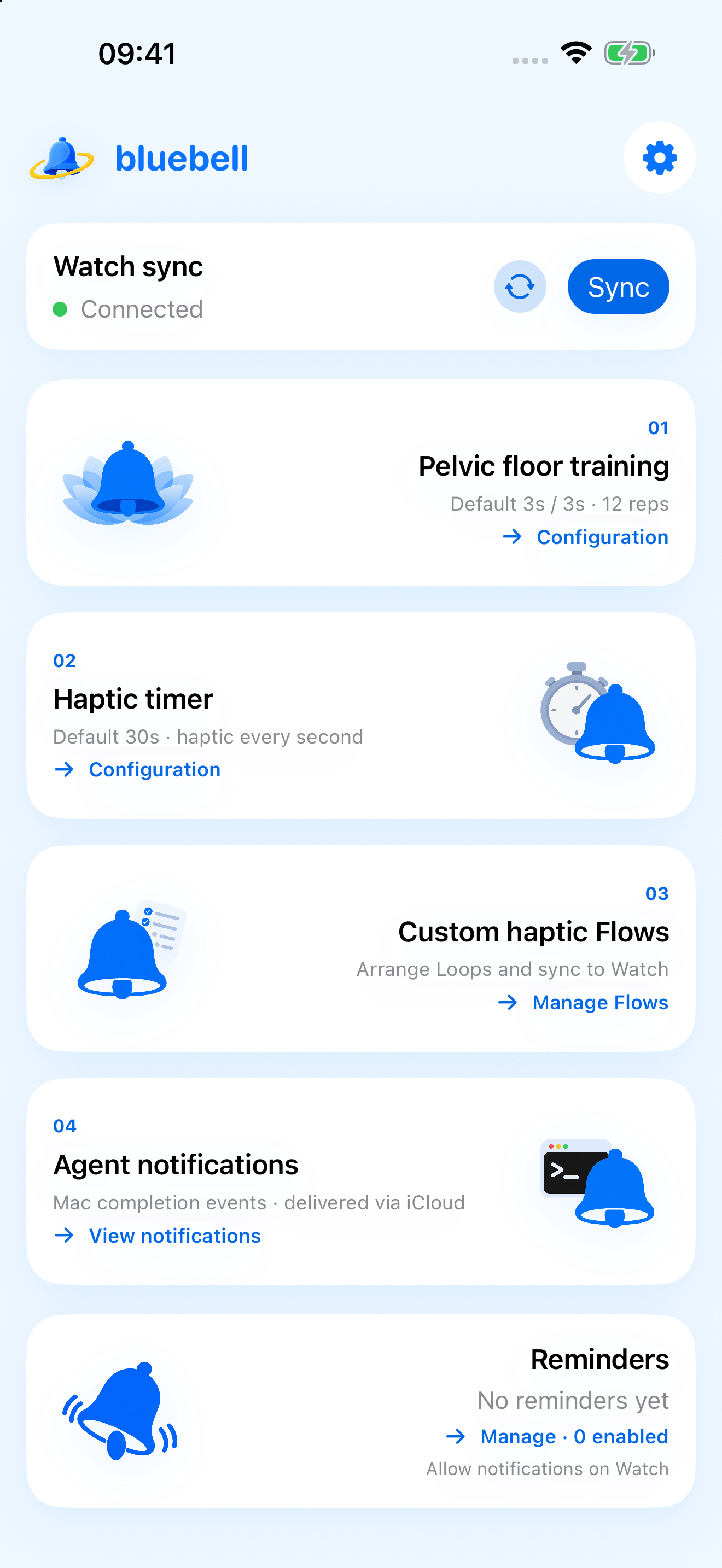
- Edit settings on iPhone.
Pelvic floor, countdown, and Flow settings are saved locally first. The Agent notification switch immediately controls local notification registration without waiting for sync. Home-screen sync still includes that preference in the full configuration snapshot.
- Return home and check that Watch is reachable now.
If the status is stale, tap the circular arrows to refresh. This only checks the connection; it does not send settings.
- Tap “Sync.”
bluebell sends the configuration immediately and also saves the latest full snapshot for delivery. Success appears only after Watch decodes, validates, and saves it and returns a matching acknowledgment.
- New settings apply to the next activity.
Training, countdowns, or Flows already in progress continue with the snapshot taken at Start.
Exception
Scheduled reminders publish automatically
Create up to 10 daily reminders for pelvic floor training, the haptic timer, or a specific Flow. Adding, editing, toggling, or deleting a reminder automatically publishes the full configuration. Saving or deleting a Flow that affects a reminder does too.
Tapping a reminder opens a safe preparation screen; it does not start an activity or play haptics in the background. If an activity is already running on Watch, it is not interrupted. Only the latest pending reminder destination is kept.
Runtime limits
Screen-off use is not unlimited background execution
Pelvic floor training, countdowns, and Flows use watchOS extended runtime to continue when you stay on a bluebell running screen and lower your wrist. They do not create HealthKit workouts or save health workout records.
Pressing the Digital Crown, switching apps, resource limits, or the runtime window expiring may interrupt an activity. bluebell freezes its state and cancels pending haptics without replaying missed cues. A Watch with synced settings can run these activities offline.